
Getting Started with Sense Path
Welcome to Sense Path — a sensory needs assessment tool for schools, SENCOs, therapists, parents, and carers. This guide walks you through signing up, creating your first profile, running an assessment, and getting useful results.
Most people go from sign-up to their first set of recommendations in under 15 minutes.
1. Sign up
- Go to app.sensepath.org/sign-up.
- Enter your name, email address, and a password, then click Continue.
- Choose your role (SENCO, teacher, parent, therapist, etc.) and confirm the workspace name Sense Path suggests for you. You can change it later.
- Accept the Terms & Conditions and Privacy Policy, then click Create account.
- Your workspace starts on a free 6-week trial with room for up to 50 profiles — no card required. See the FAQ for pricing and what happens when the trial ends.
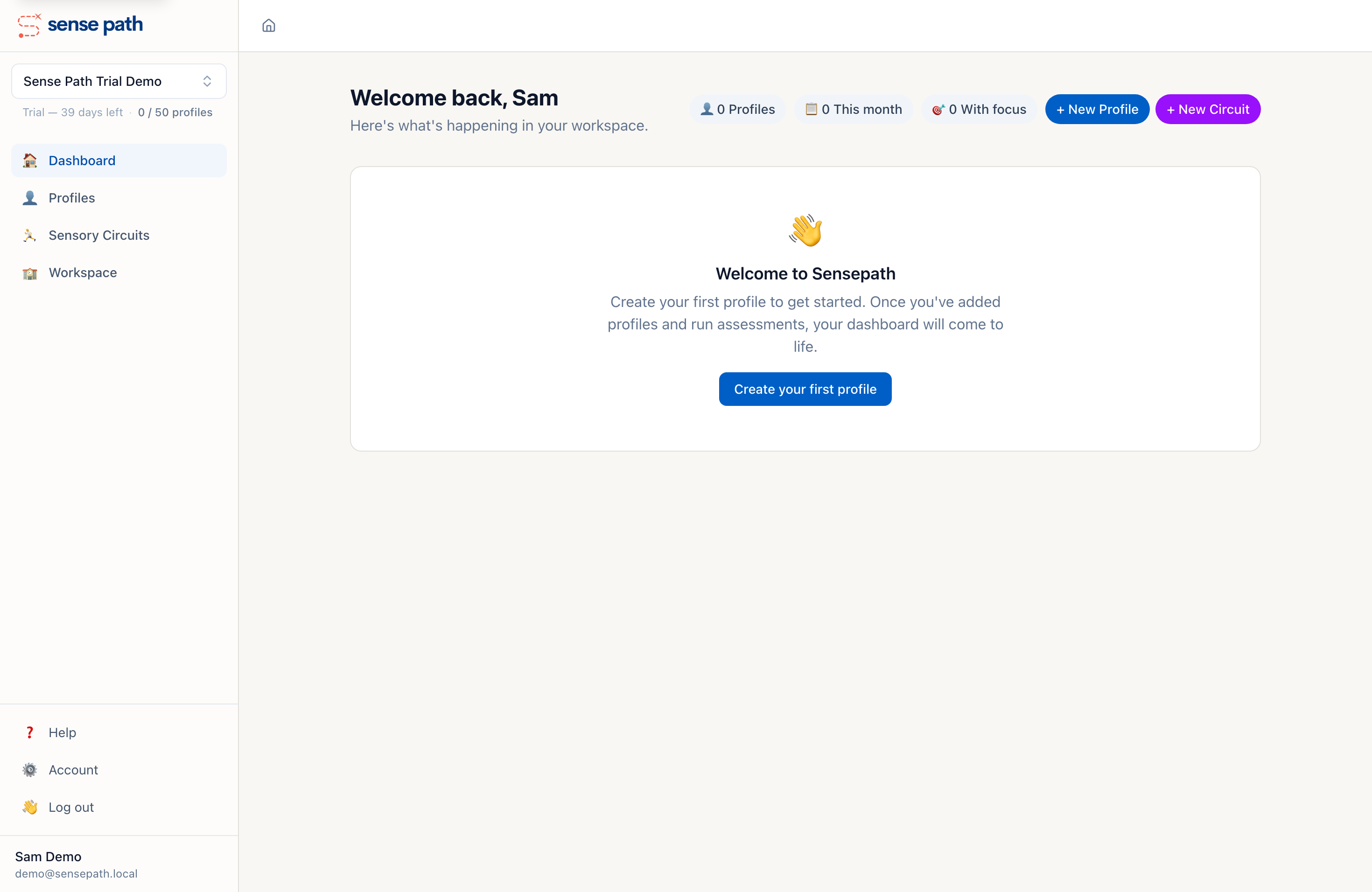
You'll land on your dashboard, ready to add your first profile. Click Create your first profile to get started.
Tip: If your school has already added your email address to their workspace, Sense Path will detect the pending invite when you sign up and add you to that workspace automatically.
2. Create your first profile
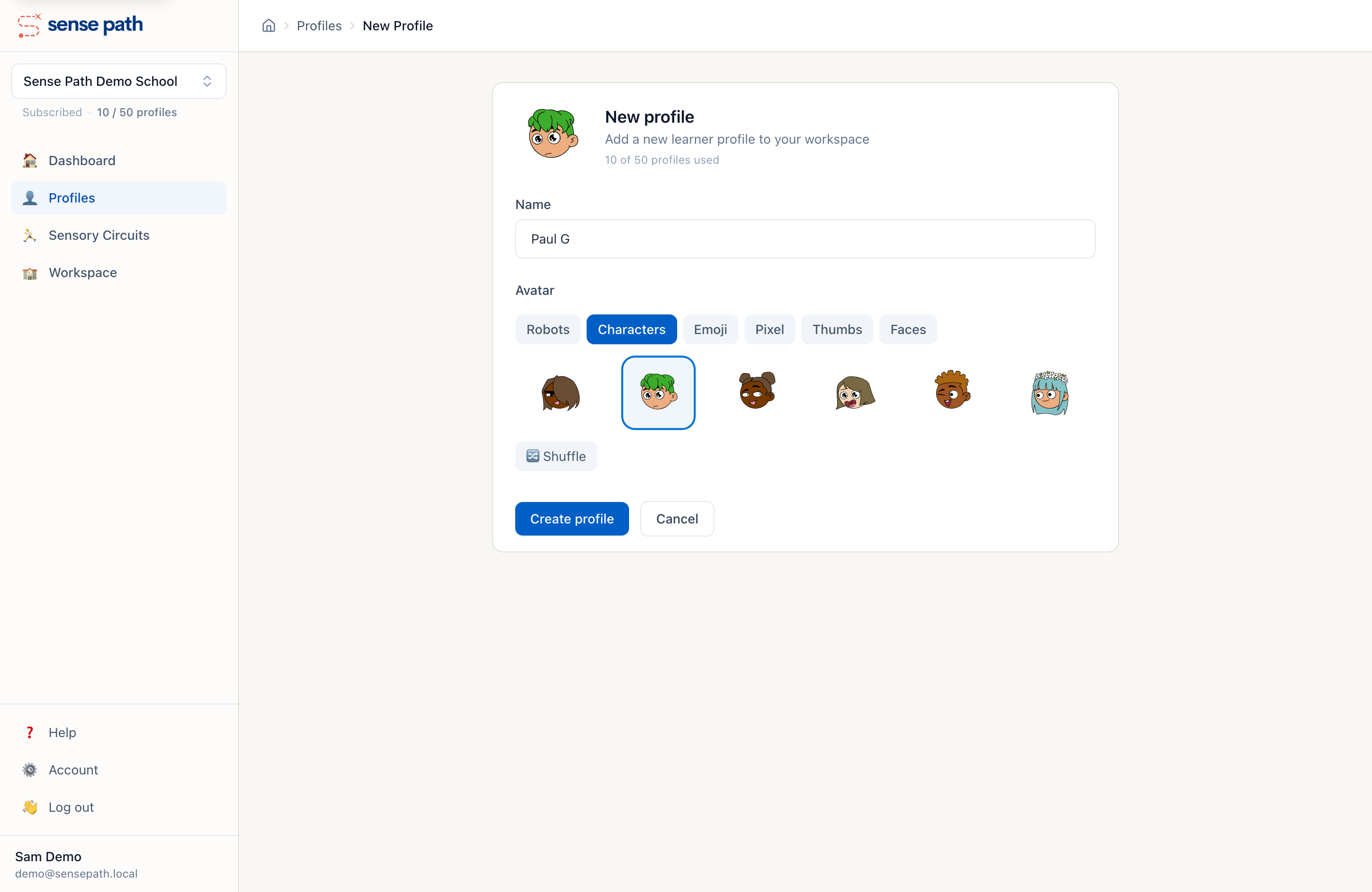
A profile represents one child you want to assess.
- Click + New Profile from the dashboard (or Create your first profile if it's your first).
- Enter a name — or initials, a student ID, a pseudonym, whatever your school prefers.
- Choose an avatar from a wide range of styles. Children often enjoy picking their own, and it helps them engage with their sensory work.
- Click Create profile.
Privacy: Sense Path doesn't require real names. Many schools use pseudonyms for data minimisation. See the Data Protection FAQ for details.
3. Run an assessment
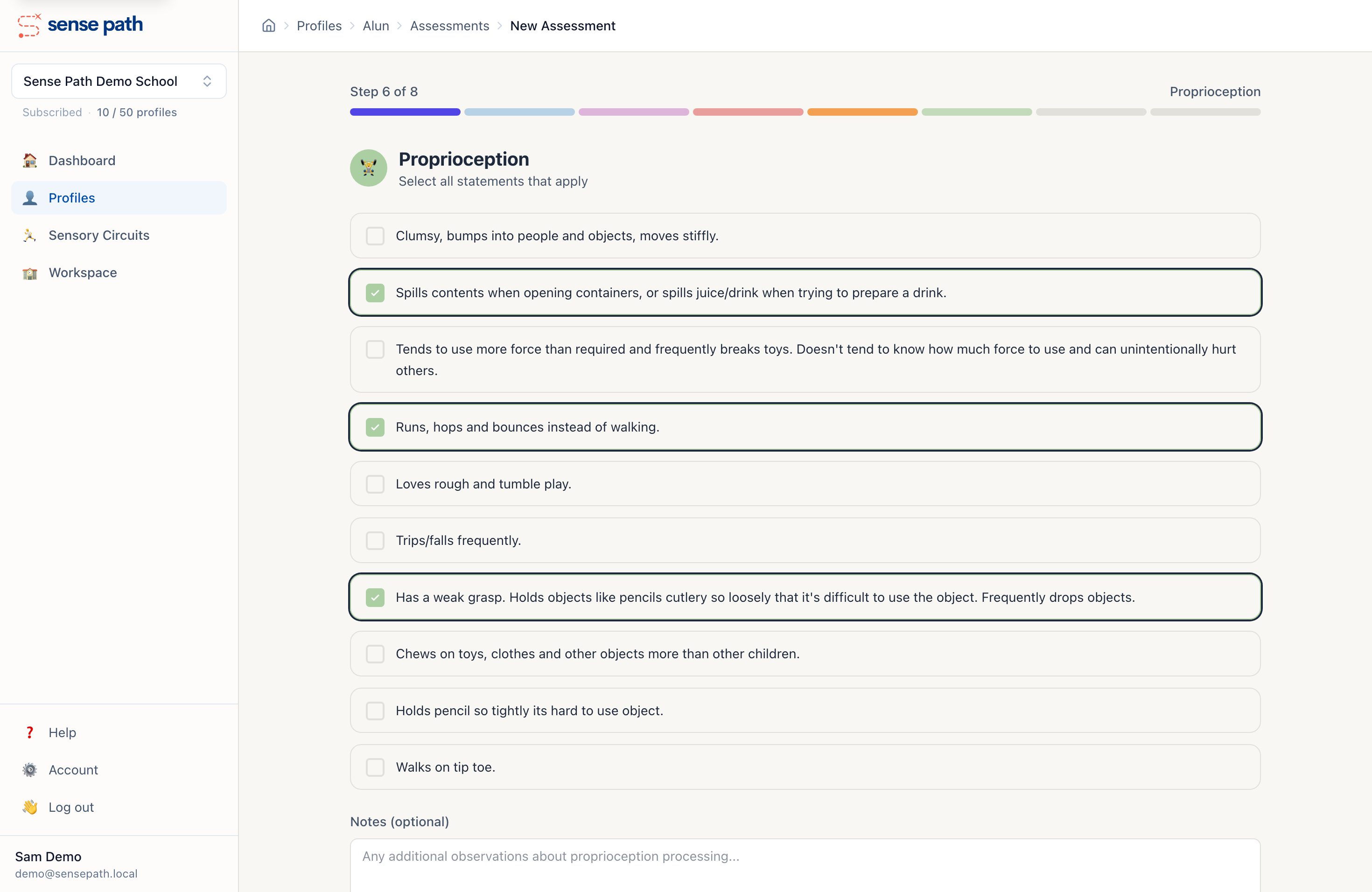
Each assessment is 60 true/false questions across six sensory areas:
| Area | What it covers |
|---|---|
| Visual | How the child processes visual information |
| Auditory | How they respond to sounds |
| Tactile | Touch and texture responses |
| Olfactory | Smell and taste responses |
| Proprioception | Body awareness and movement |
| Vestibular | Balance, coordination, spatial orientation |
To start:
- Open a profile and click + New Assessment, then Start Assessment.
- Work through each section, ticking the statements that apply based on your observations.
- You can add notes to any section for extra context.
- On the final step, you'll have the option to set a focus (see below) before clicking Submit Assessment.
Your progress is auto-saved as a draft as you go, so you won't lose anything if you get interrupted. Drafts show up in the profile with a "Draft" badge until you submit them.
4. Set focus
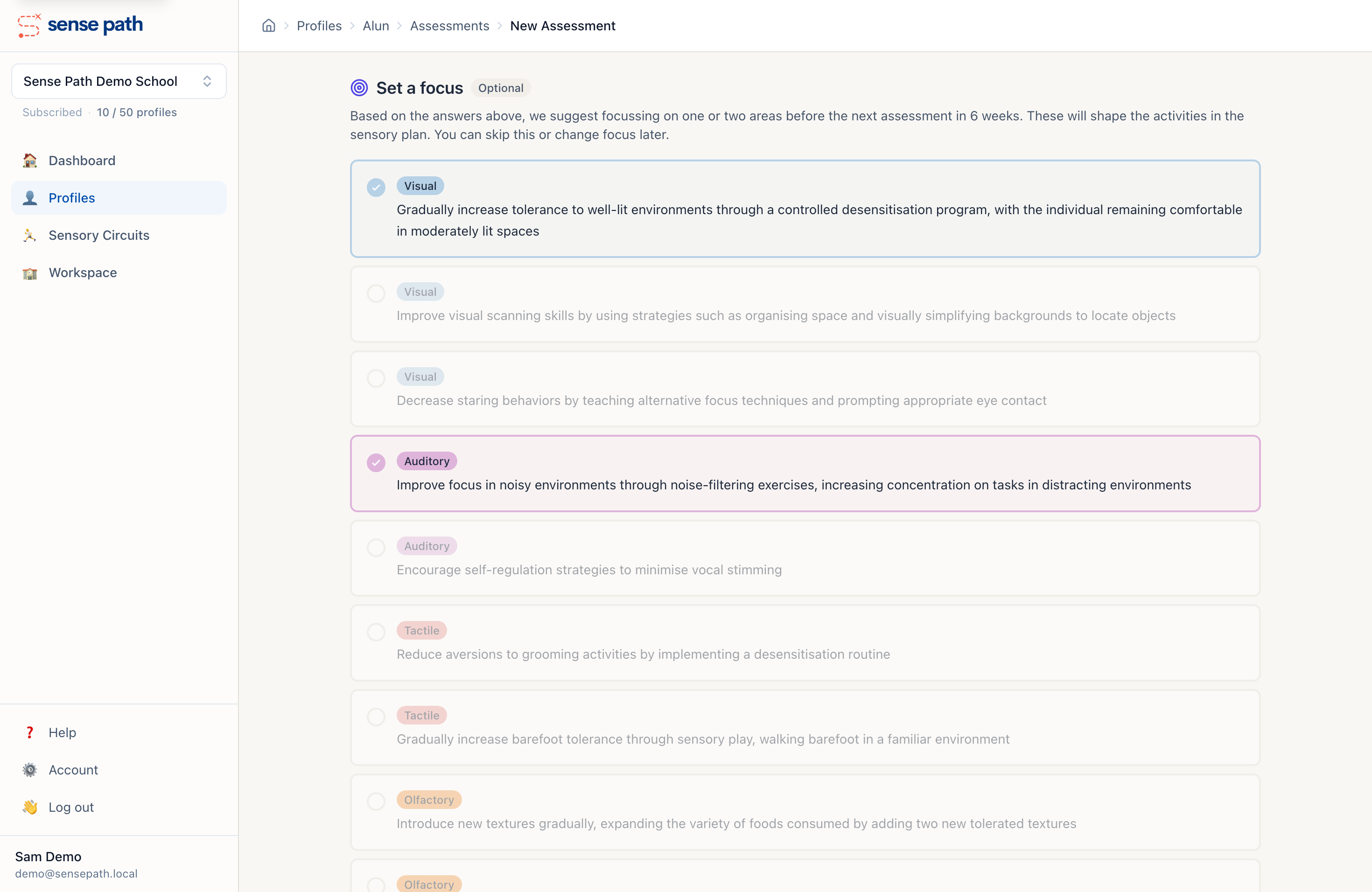
On the final step of the assessment — just before you submit — Sense Path suggests focus goals based on the answers you've given. You choose one or two to concentrate on — enough to be meaningful without overwhelming the child or the adults supporting them, and realistic to work on within a 6-week assessment cycle.
Setting focus is optional. You can skip it and submit without choosing any goals. Plans will still be tailored to the child's sensory profile — focus just makes them even more targeted by weighting activities toward specific outcomes.
You can also set or change focus later from the profile page or assessment results. When you update focus, you'll be prompted to Regenerate plans so they reflect the new goals.
5. What you get
Submitting an assessment generates results immediately.
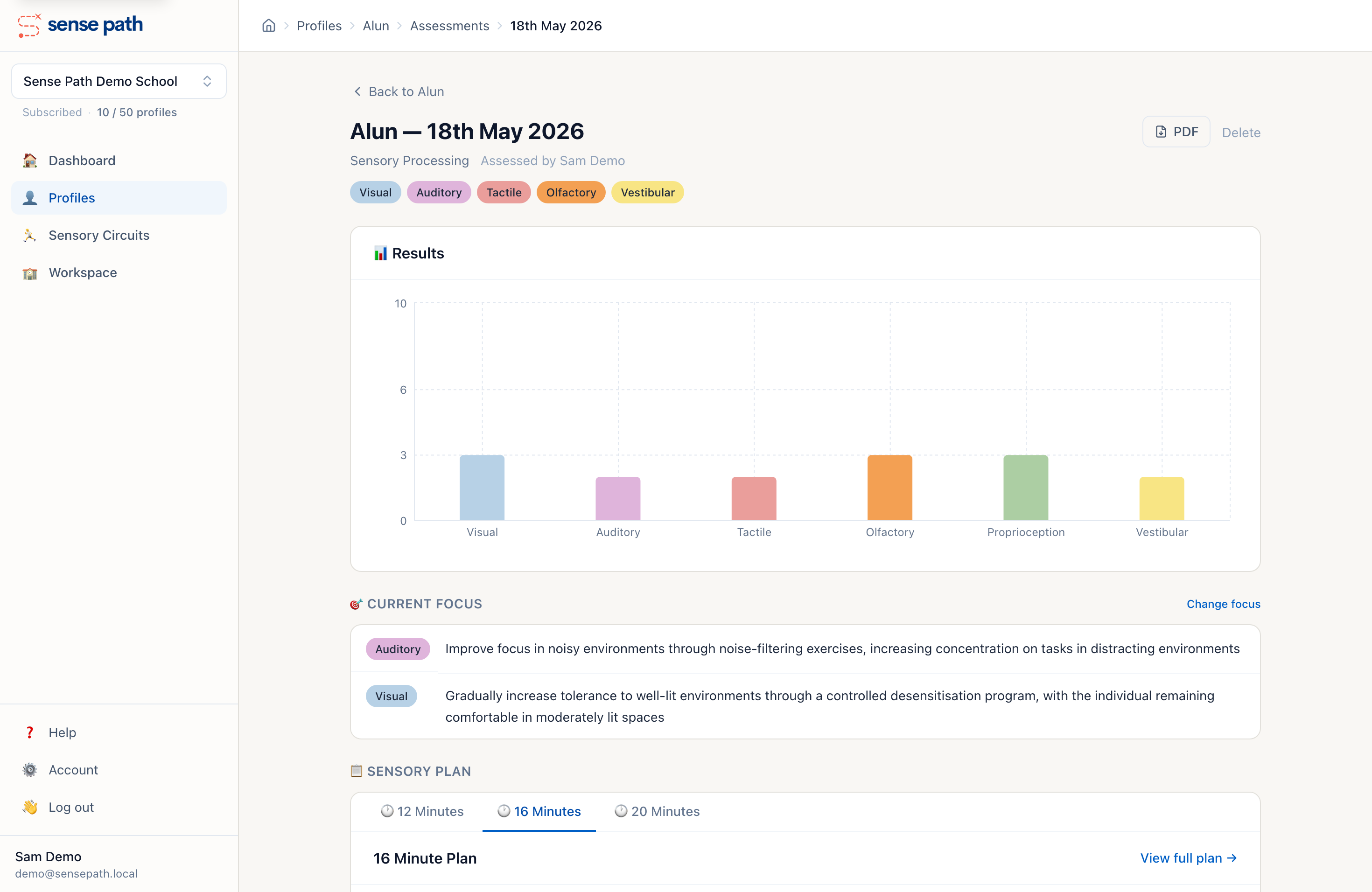
Scores — a bar chart showing how the child scored across the six sensory areas, giving you a clear picture of where their needs are strongest.
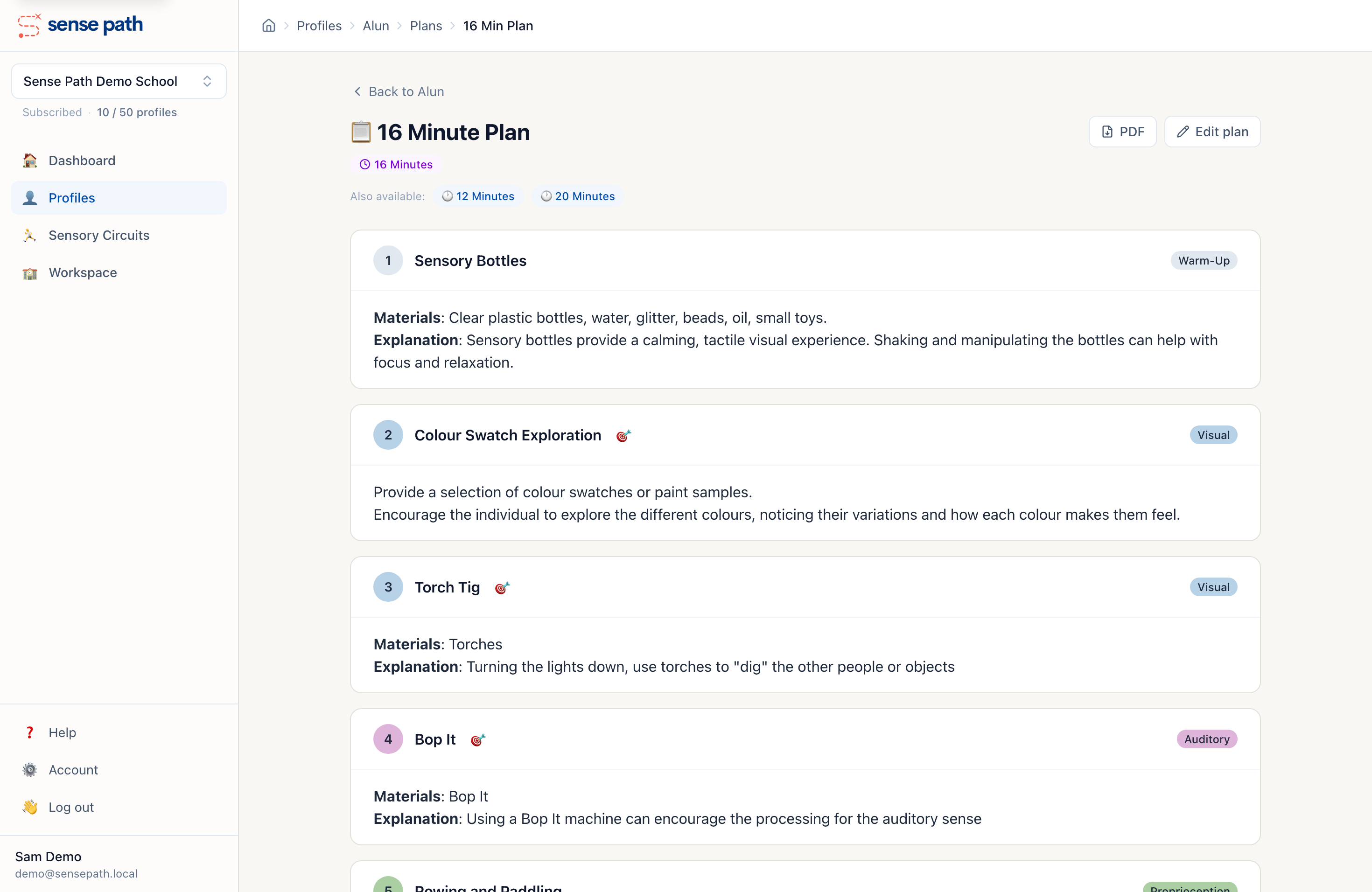
Sensory plans — three programmes of activities at 12, 16, and 20-minute durations, with activities matched to the child's needs and any focus goals you've set. Click Edit plan to swap individual activities for alternatives.
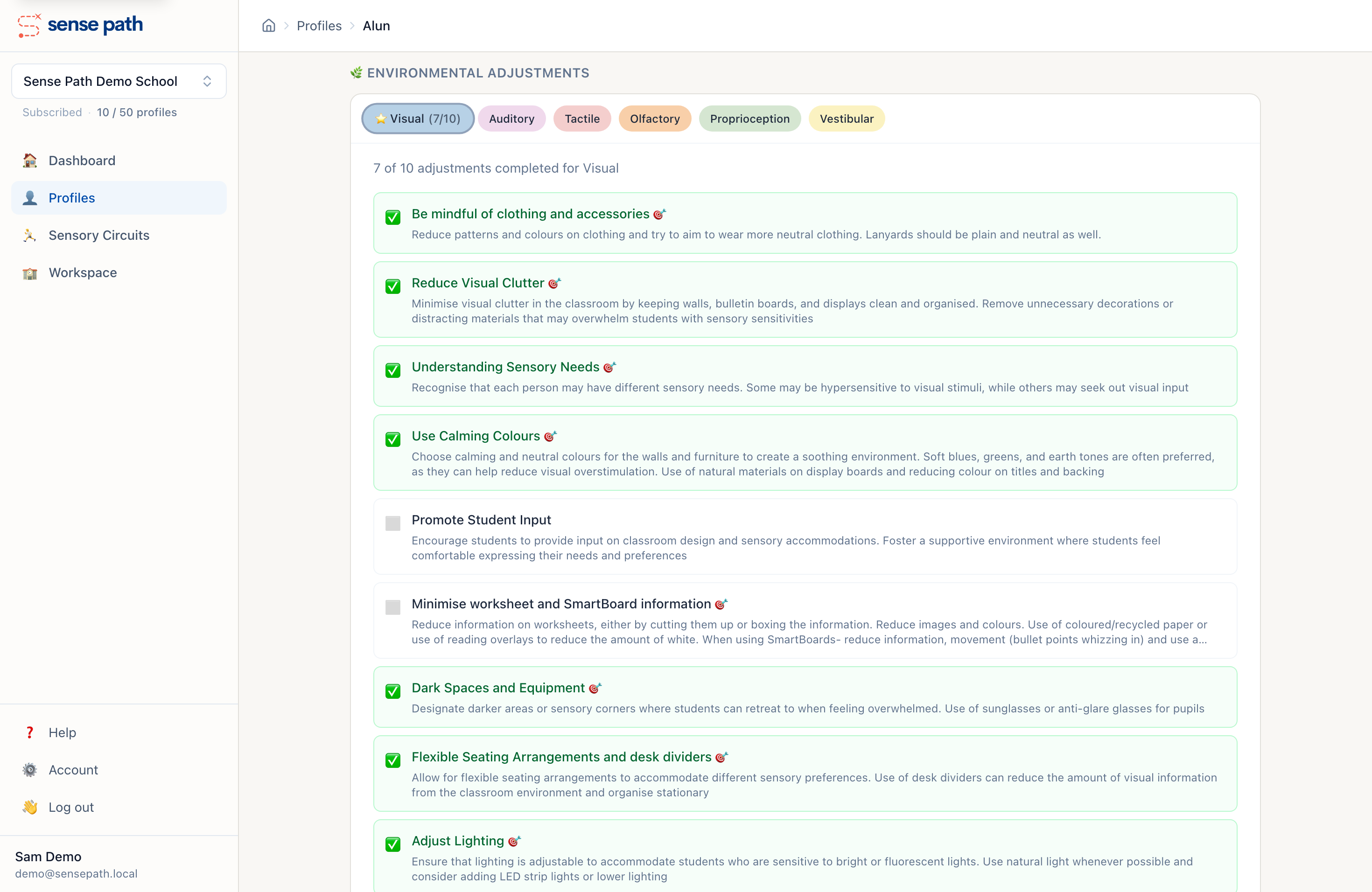
Environmental adjustments — practical changes to the classroom or environment to better support the child's sensory needs. You can mark them off as you put them in place.
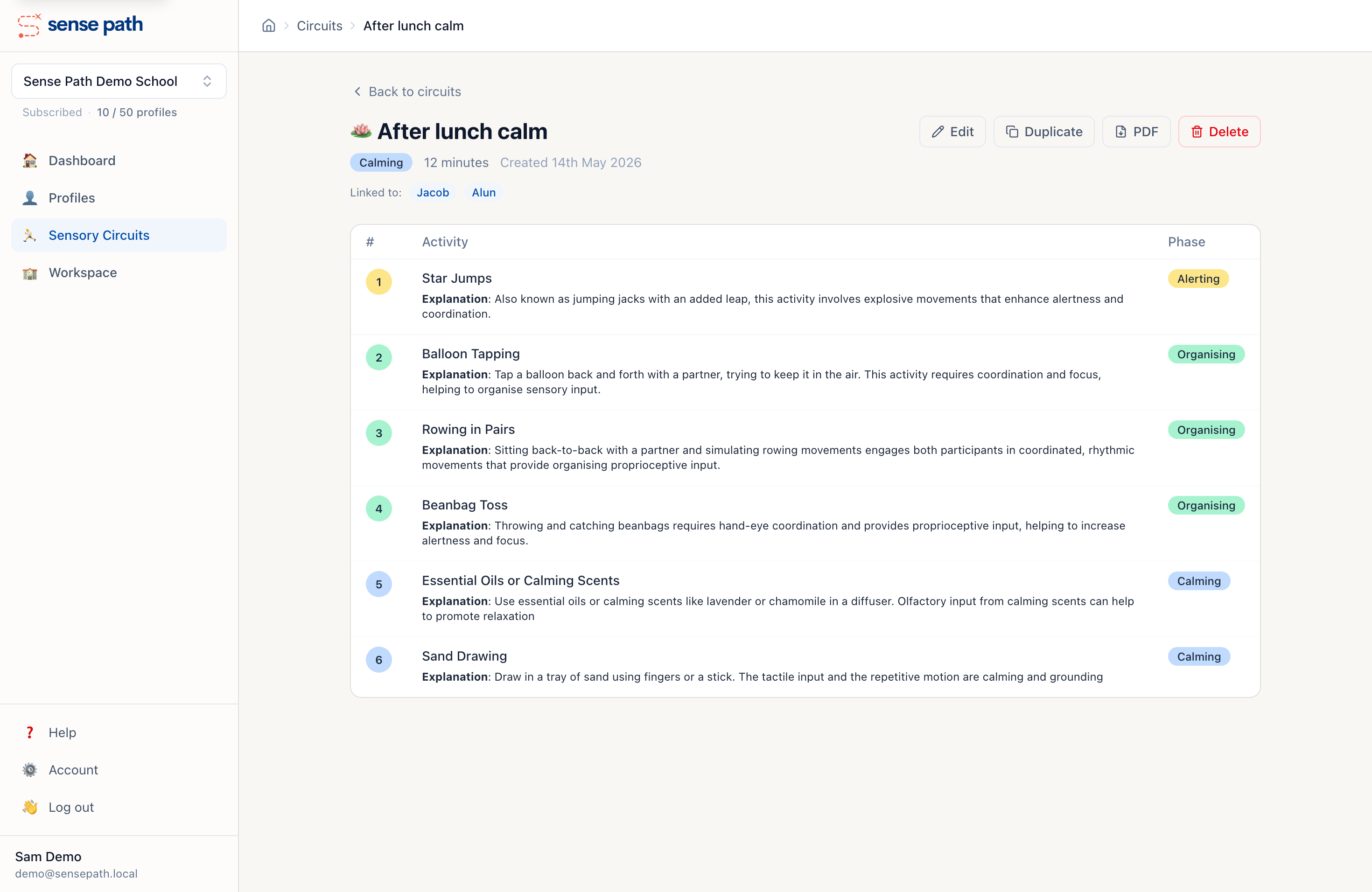
Sensory circuits — structured movement programmes combining alerting, organising, and calming activities. These are created separately from assessments — build one from the Circuits page, save it to your workspace, and link it to profiles for easy access.
6. What next
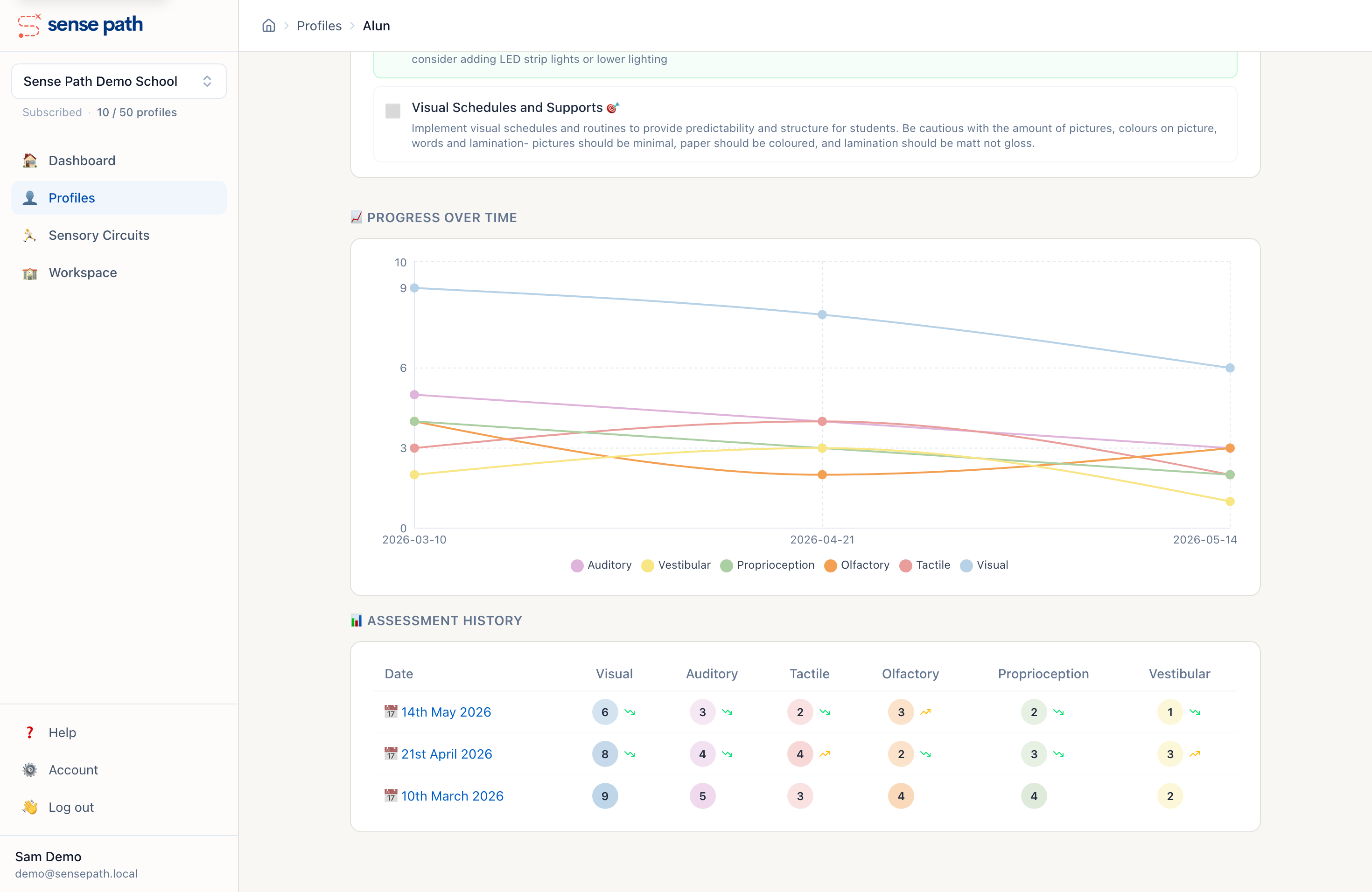
- Reassess every 6 weeks or so to track progress. Each assessment adds to the profile's history so you can see how things are changing over time.
- Invite colleagues if your school needs multiple people working with the same profiles. See Workspace setup.
- Subscribe when you're ready. The trial gives you plenty of time to explore.
Need help?
Check the FAQ or contact us.
Last updated: May 2026